Your data
Connections
Connections are the parts of your phone Halo can understand and act on. Each one is in Settings under Connections, shows its permission status, and has a Grant Access button.
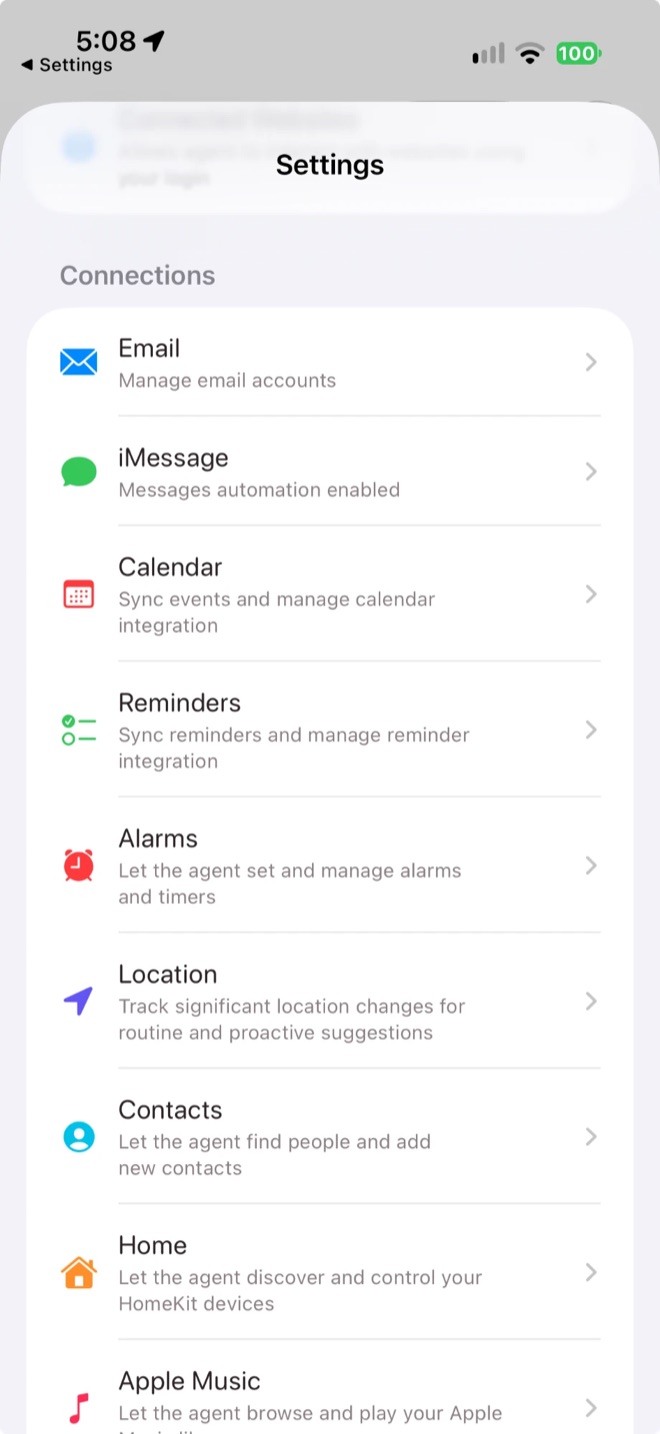
Connections in Settings
| Connection | What Halo can do | Good to know |
|---|---|---|
| Read, search and summarise mail, draft replies in your style, spot bills and deliveries. | Uses IMAP with an app password. Sending always asks you first. | |
| iMessage | Read messages and codes, open a pre-filled message for you to send. | Needs a Shortcuts automation |
| Calendar | See and create events, find free time. | Choose which calendars to sync. |
| Reminders | Create, complete and organise reminders. | Choose which lists to sync. |
| Alarms | Set alarms and timers from chat. | Only shows alarms Halo created, not ones from the Clock app. |
| Location | Know when you arrive or leave places, for insights and location tasks. | Needs Always access for reliable background triggers. Locations stay on device. |
| Contacts | Look up and add contacts. | Only what a request needs is sent to the model. |
| Home | Control HomeKit accessories and scenes. | Can’t add or remove devices. Choose how often Halo checks. |
| Apple Music | Search, play and manage playlists. | Pick the player under Playback. |
| Health | Read steps, workouts, sleep and vitals. | Read-only. You choose the data types. |
| Photos | Find, export and organise photos. | Works with limited access to selected photos. |
| Weather | Current conditions and forecasts. | Shown at the top of Home. |
Connect email
Open Email
Go to Settings›Email and tap Add Email Account, then enter your address.
Create an app password
Gmail, Yahoo and iCloud are detected automatically, and Halo shows the steps: turn on 2-step verification, tap Generate Password to open your provider’s page, and paste the password into Halo. For other providers, enter the IMAP hostname, port (usually 993) and security.
Choose notifications
In Settings›Notifications, choose Important, All or Off for new mail.
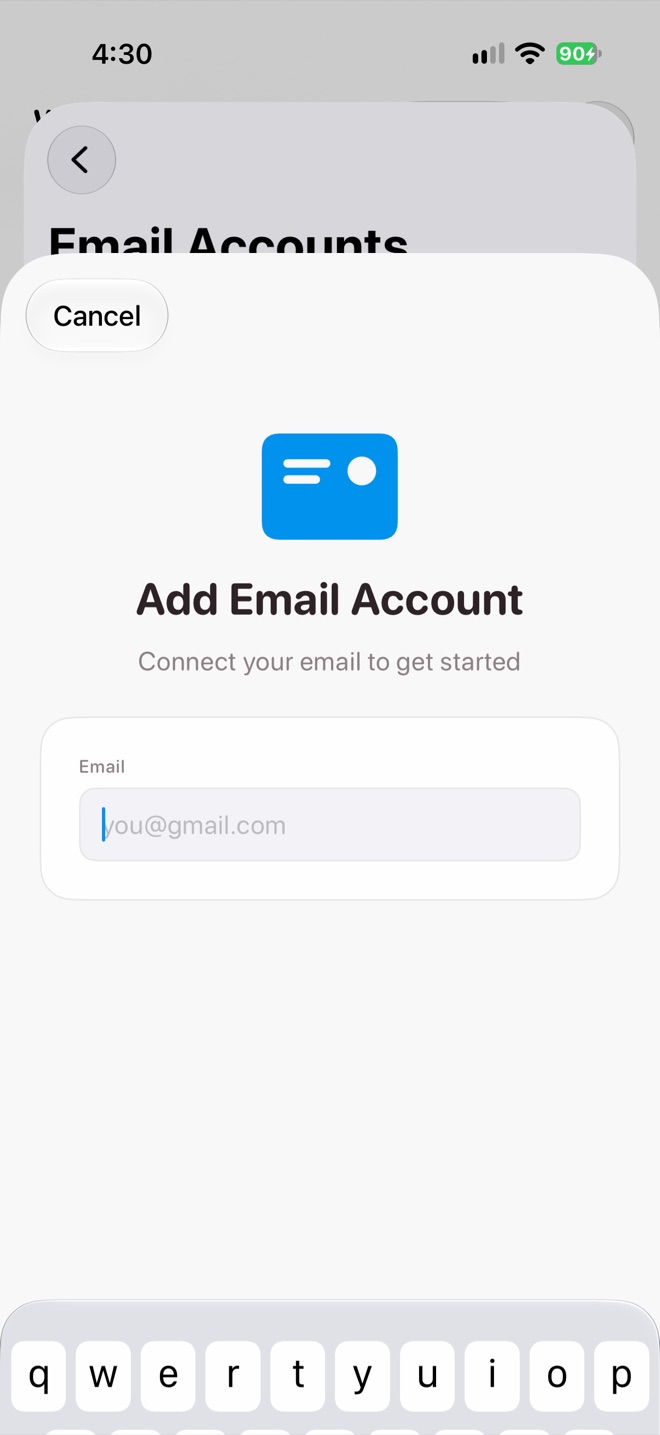
Add Email Account
You can revoke an app password from your provider’s account settings at any time.
Background updates
New events from every connection are turned into a timeline on your primary device. Health, Home and Music are checked periodically rather than instantly. Insights appear about 45 seconds after something new happens, which you can change in Settings›Proactive AI.
Privacy
Email is fetched and stored on your iPhone, never on a Halo server. Data from connections goes to your AI provider only when Halo needs it to answer you or to write insights and memories.
Related