How-to guide
Understand and share AI traces
Every time Halo’s agent runs, it writes a trace: what it was asked, which tools it called with what inputs, what came back, what it thought and what it answered. When an answer looks wrong or a task fails, the trace shows you why.
Find a trace
- Every run: Settings›Agent Logs lists every agent session, newest first, with when it ran, how long it took and how many turns it used. A green dot means it succeeded, red means it failed.
- A task’s runs: open the task from Tasks and look under Recent Executions and Agent Sessions.
- The most expensive runs: Biggest runs in AI Usage shows which sessions to look for in Agent Logs.
Sessions are named after the instructions they started with, so a chat shows your message, a task shows its goal, and background work shows Halo’s own instructions, like the memory editor or the insights generator.
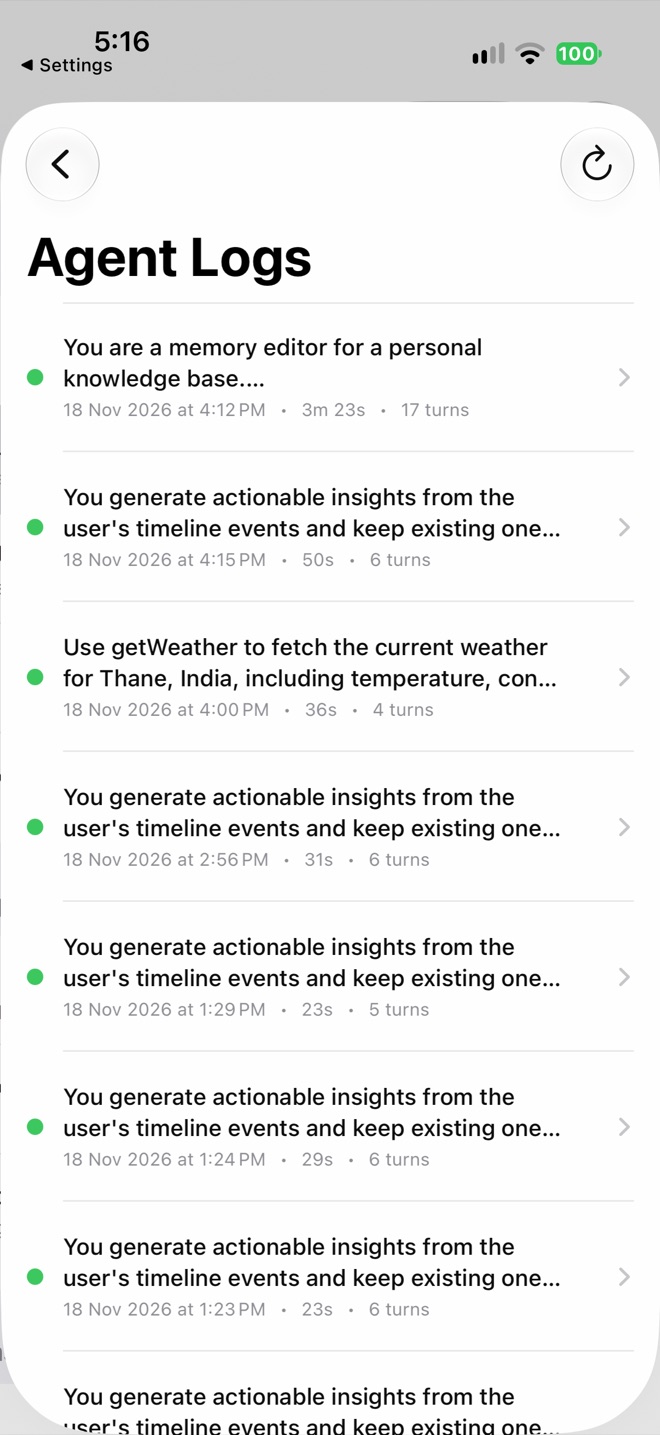
Settings › Agent Logs
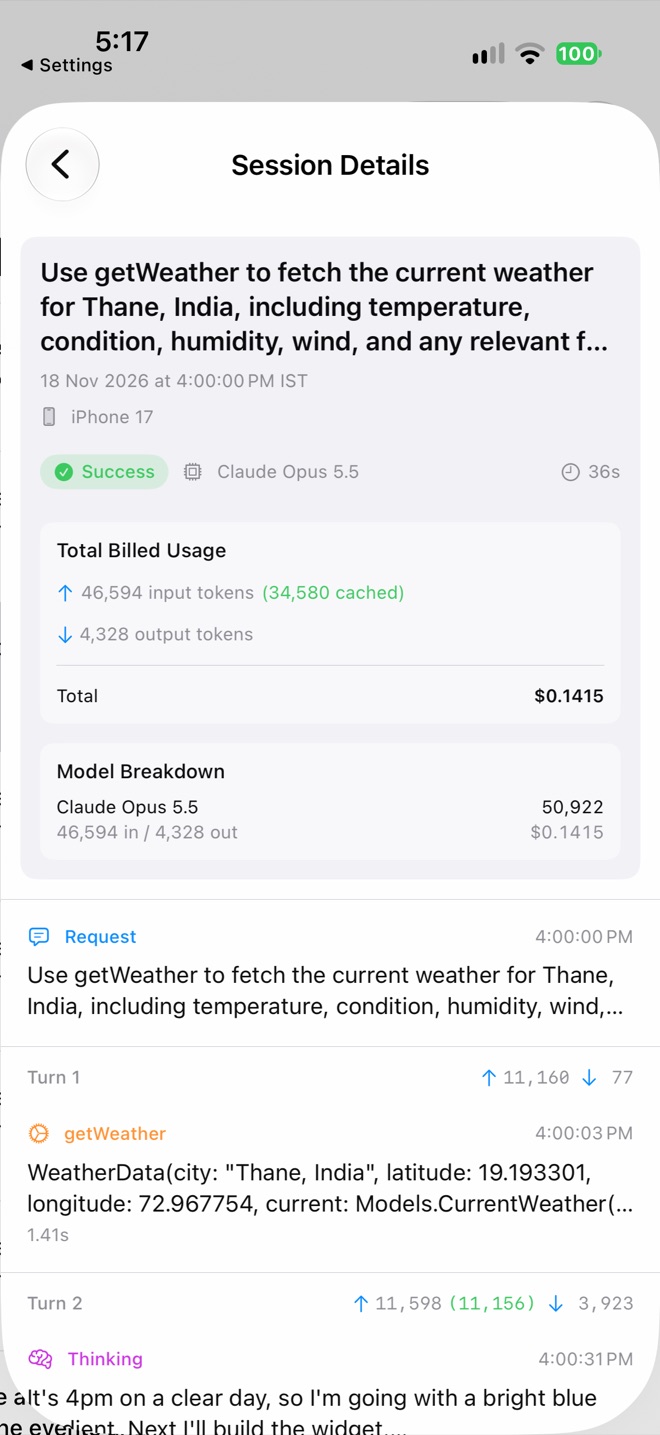
Session Details
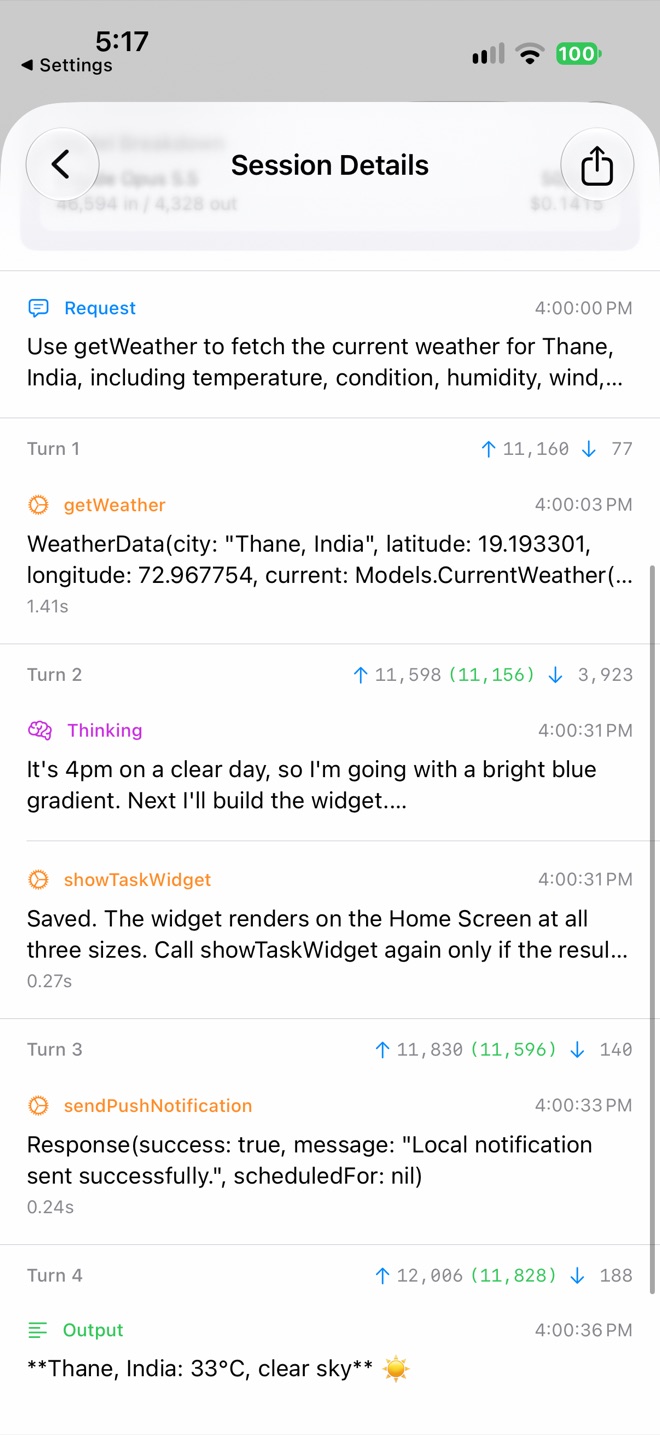
Turn by turn
Read a trace
The header
At the top of Session Details: whether the run succeeded, failed or is still in progress, which device ran it, which model it used, how long it took, and Total Billed Usage with a Model Breakdown.
The turns
Below it, the run is laid out turn by turn. Each turn is one call to the model and shows its tokens and how long it took.
| Entry | What it is |
|---|---|
| Request | What the agent was asked: your message, or a task’s goal. |
| Tool (e.g. getWeather) | A tool the agent called. The line under it is what the tool returned. |
| Thinking | The model’s reasoning before it acted, for models that think. |
| Approval | A point where the agent asked you to allow a tool. |
| Sub-agent Sessions | Helpers the agent started for part of the job, each with its own trace. |
| Error | Something that failed, with the message from the tool or provider. |
| Output | The final answer. |
Tap any tool entry to open Tool Details with the full Input Parameters and the complete output.
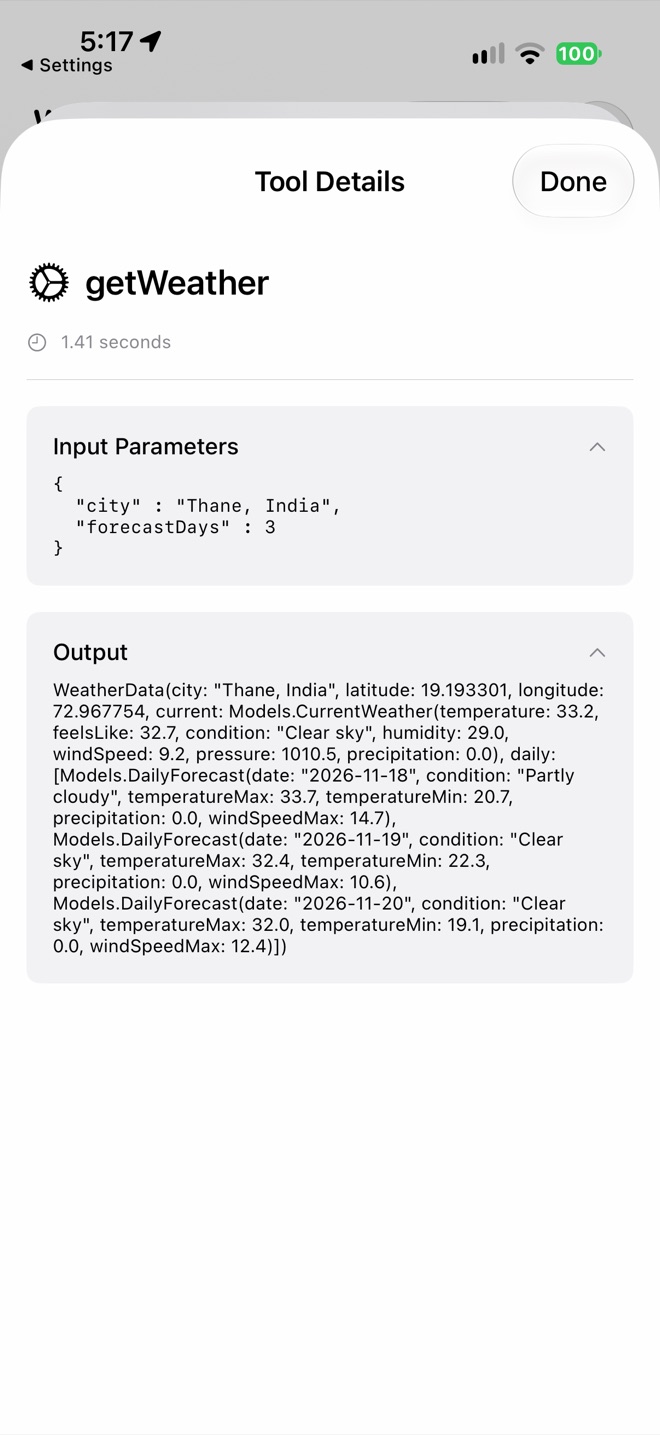
Tool Details
Debug a bad answer or a failed task
| What you see | Likely cause and fix |
|---|---|
| The answer is wrong, and a tool output is wrong too | The data was wrong at the source. Check the connection or the website the tool read. |
| The tool output is right, the answer isn’t | The model misread it. Try a stronger model or higher reasoning, or make the goal more specific. |
| The tool it needed was never called | It wasn’t available. For a task, add it under What it can use. For an MCP tool, check the server is on and signed in. |
| A tool returned an error | Read the message in Tool Details. Sign-in errors mean Reconnect the MCP server or Re-authenticate the website. |
| The provider returned an error | Rate limits, an expired sign-in or no credit. Check the provider in Settings › AI Model and set a Fallback model. |
| Lots of turns and tokens | The agent went round in circles. Tighten the goal, say where to look, and remove tools it doesn’t need. |
| It stopped partway | Runs time out after 15 minutes, and turns are capped. A clearer goal usually finishes faster. |
Share a trace
Open the session
Go to Settings›Agent Logs and tap the session.
Tap Share
Tap the share button at the top right. This shares the session’s log file, which you can AirDrop to your Mac, save to Files, or attach to an email.
Send it with a description
Email it to support@meethalo.app or post it in the Discord community, with what you asked and what you expected.
Report a task problem in one tap
For tasks there’s a shortcut. Open the task and tap Report Issue under Statistics. Halo opens a Mail draft to support with the task’s settings, its run logs and up to three recent agent traces already attached. Describe what went wrong at the top and send it.
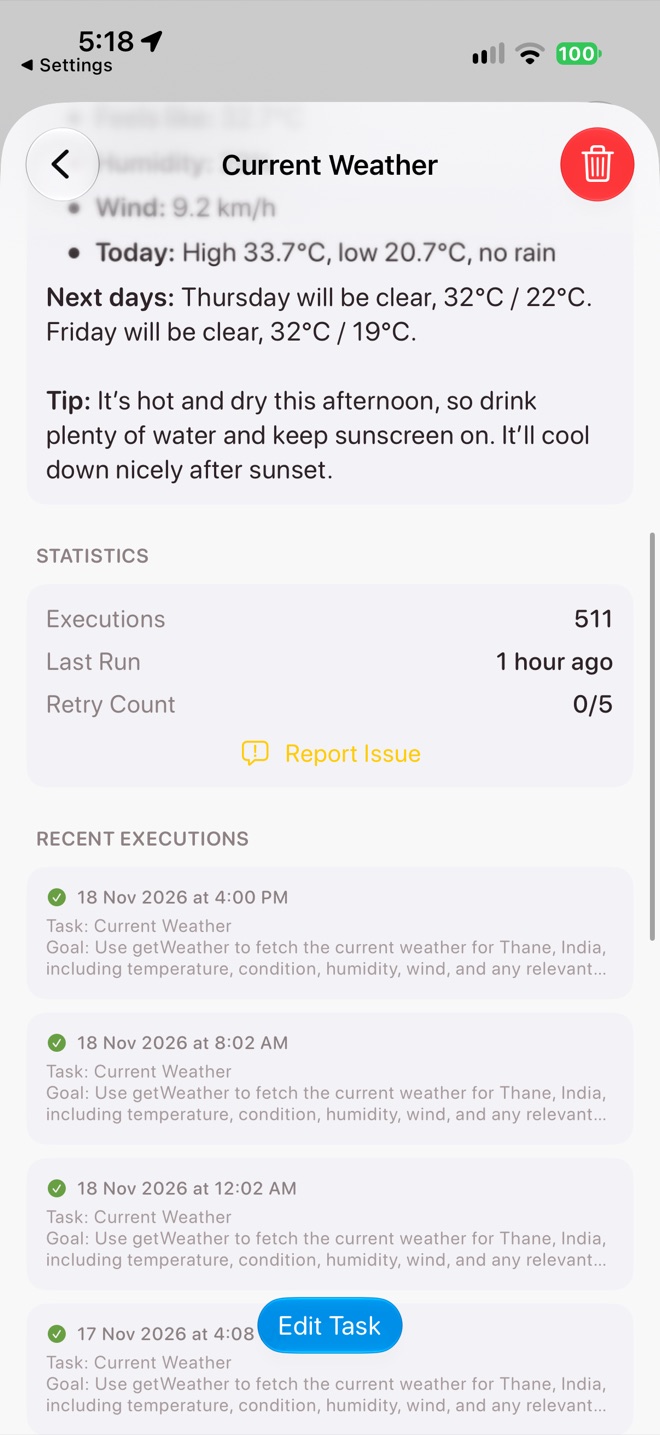
Report Issue on a task
Traces contain your data
A trace holds everything the agent saw: your request, emails or messages it read, tool results and its answer. Read it before you share it, and only send it to people you trust. Halo never uploads traces on its own.
Where traces live
Traces are saved in the logs/agent folder of your workspace in iCloud Drive, so you can open them from any of your devices. To free up space, go to Settings›Storage and delete traces older than 30 days. That removes them from all your devices; your usage totals are kept.