Automation
Secure Vault
The Secure Vault stores cards, logins and bank details that even the AI can’t read. Halo types them straight into the checkout page or login form when it needs them. Find it in Settings›Secure Vault.
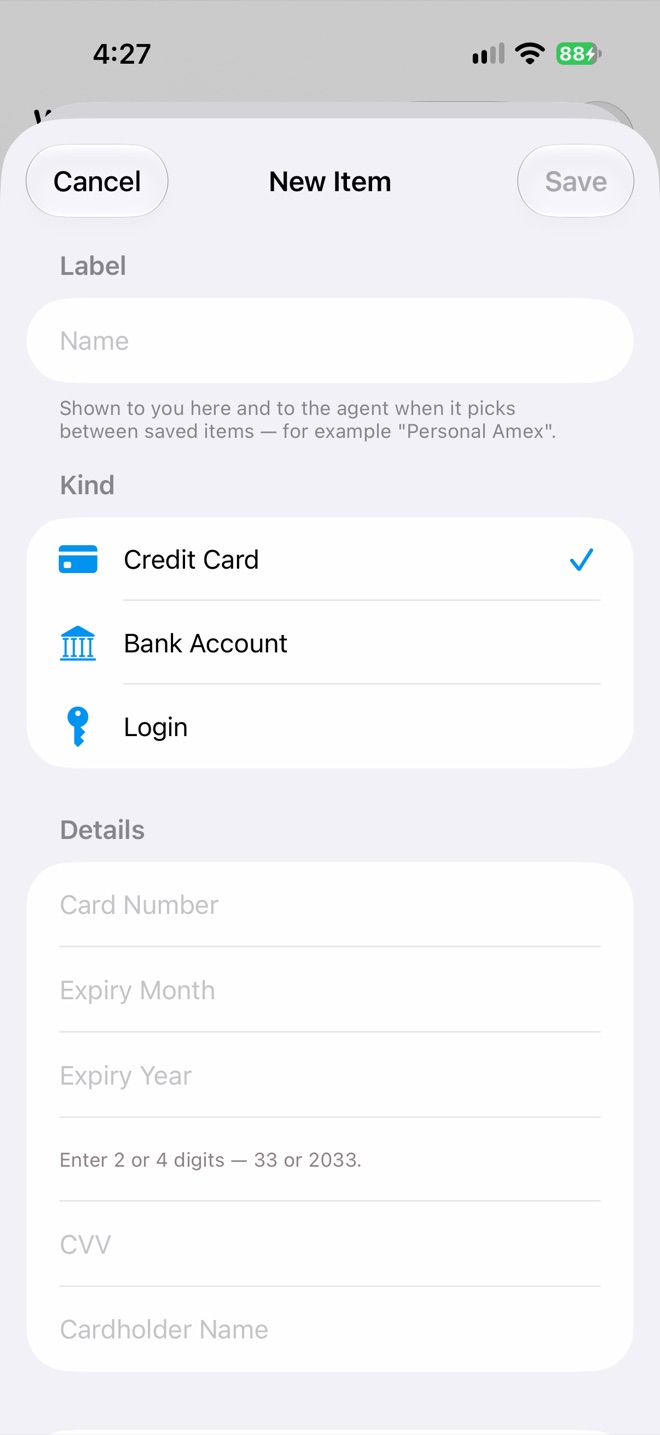
New Item
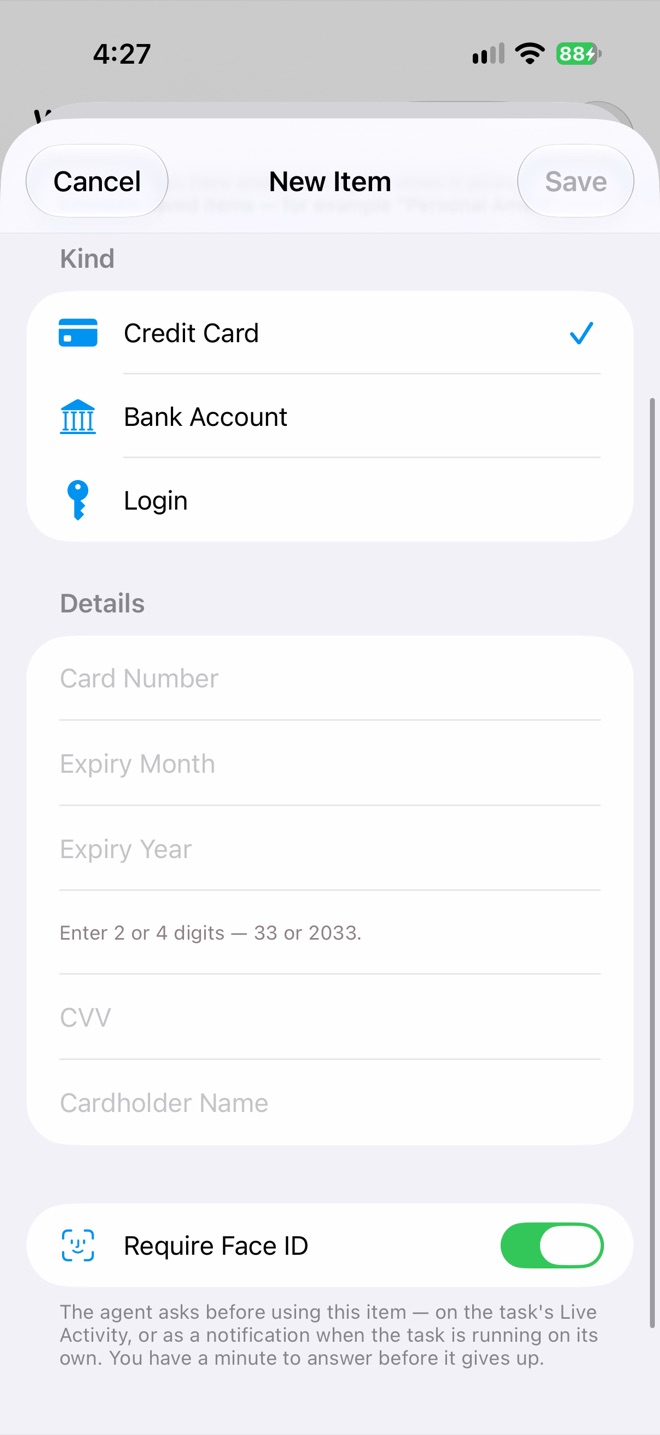
Require Face ID
Item types
| Kind | Fields |
|---|---|
| Credit Card | Card number, expiry month and year, CVV, cardholder name. Number and expiry are checked as you type. |
| Bank Account | Account number, IFSC or routing number, account holder, bank. |
| Login | Username, password, website, and optional One-Time Code Setup (scan a 2FA QR code). |
Every item has a Label, like “Personal Amex”. That’s the only thing the agent sees when choosing between items.
Require Face ID
- On: the agent asks before using the item, on the task’s Live Activity or as a notification. You have a minute to approve.
- Off: the agent can use it without asking, including from scheduled tasks while your phone is locked. Every use is still logged.
How values stay hidden
When the agent asks for an item, it gets a placeholder token instead of the value. The token is swapped for the real value only at the moment Halo’s browser types into the field. Sensitive inputs are also hidden from the page text the AI reads.
Managing items
- Reveal shows a stored value to you.
- Edit Values replaces stored values. Saved values are never shown in the editor.
- Delete Item removes it everywhere.
- Access Log lists every read, by you or an agent, and which run made it.
Privacy
Items are stored in the iOS Keychain and sync through iCloud Keychain. They are not in your workspace files and never go to a Halo server or to your AI provider.