Get started
First-time setup
Halo connects everything on your phone into one private assistant. Here’s what to set up first, roughly in order. Most of it takes a tap or two.
Add an AI model
Halo uses the AI provider you choose. Sign in with your ChatGPT or Claude account, add an API key, or connect your own server. Then choose a Primary and Secondary model. See AI Models.
Turn on iCloud Drive
Your workspace lives in iCloud Drive so it’s backed up and shared with your other devices. In the Files app, touch and hold the Halo folder and choose Keep Downloaded. See Workspace & Sync.
Connect your sources
In Settings, under Connections, turn on what you want Halo to understand: Email, Calendar, Reminders, Location, Health, Home, Music, Photos and more. Each one only asks for the access it needs. See Connections.
Set up the Action Button
Make it a voice assistant or a voice recorder. See Ask Halo by voice and Capture voice notes.
Let it learn
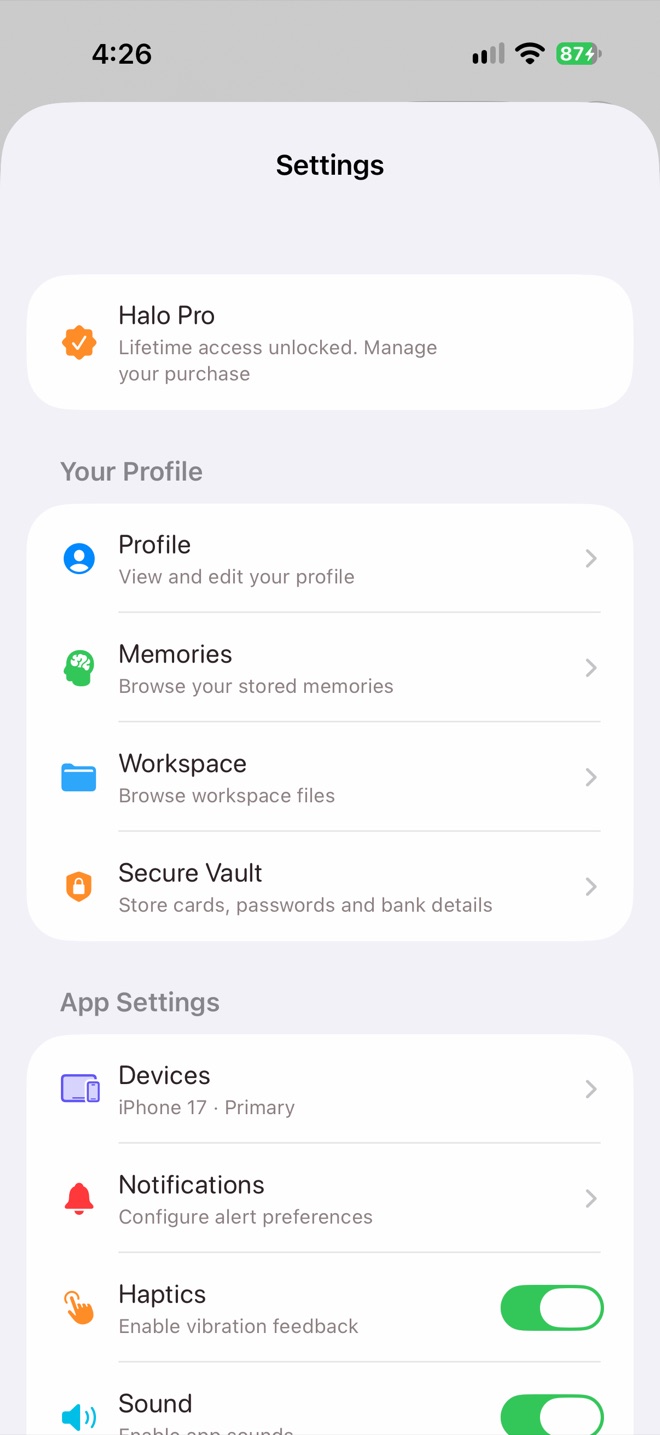
Settings
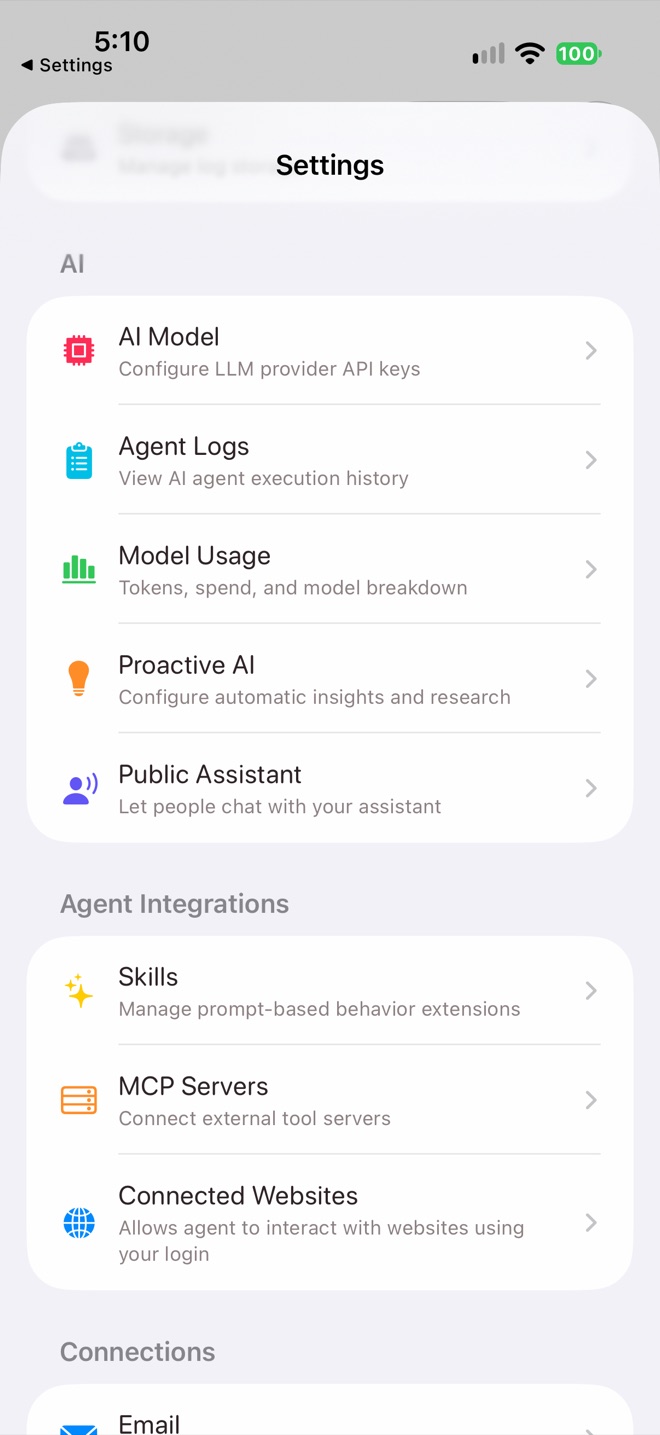
The AI section
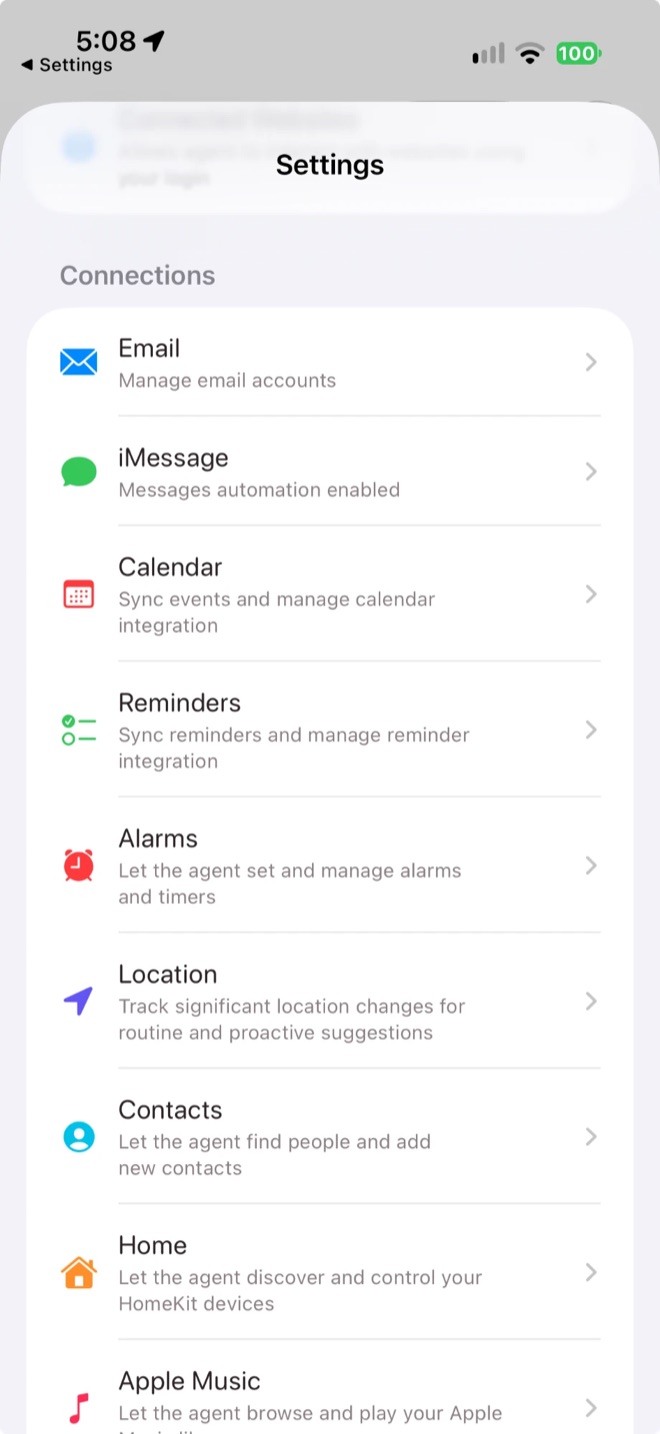
Connections
Find your way around
- Home: your daily summary, insights and task widgets. The icons at the top open Events, Tasks and Settings.
- Todos: things to do that Halo picked up, plus your own.
- Notes: voice notes and typed notes.
- Search: search across your memories and notes.
- Chat: the round button. Ask anything, attach photos or files, or tap the mic to talk.
Approvals in chat
The menu in the chat composer sets whether Halo asks for approval before running tools and commands, or auto approves. When it asks, choose Allow Once, Always Allow or Deny.
Stuck? The Help Center has quick answers, and you can always email support@meethalo.app.