How-to guide
Auto-fill verification codes from Messages
iOS doesn’t let apps read Messages, so Halo uses a Shortcuts automation to copy new messages into a private database on your iPhone. Then Halo can fill in one-time codes during a checkout or sign-in, and spot things in your messages that need attention.
Open the iMessage connection
Go to Settings›iMessage (under Connections).
Install the shortcut
Tap Install Shortcut and add iMessage To Halo in the Shortcuts app.
Turn on the automation
On iOS 27: tap Open iMessage To Halo, tap Edit, tap the arrow next to the shortcut’s name and turn on Automation.
On earlier iOS: in Shortcuts, open Automation, tap +, choose Message, set Message Contains to a single space, add Run Shortcut › iMessage To Halo, and turn off Ask Before Running.
Confirm in Halo
Back in Halo, switch on Automation is enabled?. Halo can’t check this itself, so only switch it on once the automation is on.
Sync your history
Choose how many Days to fetch and tap Sync Now. From then on, the automation keeps Halo up to date on its own.
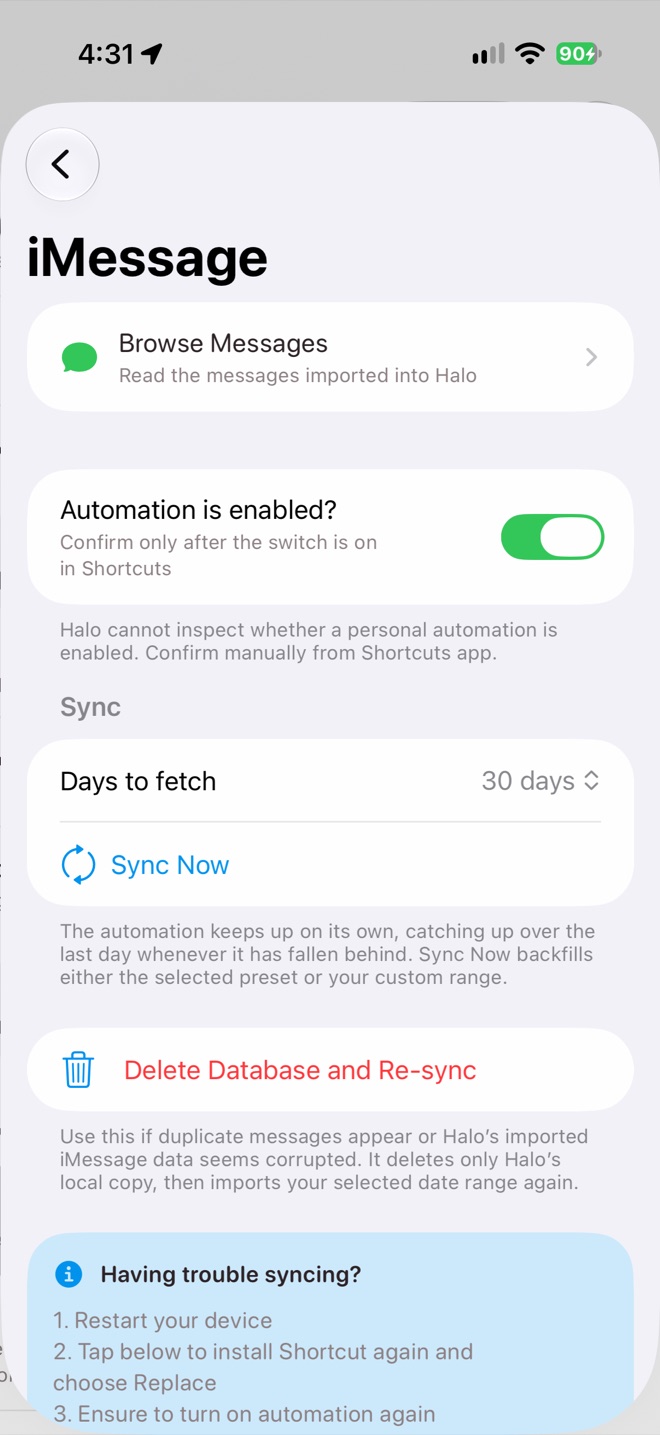
Settings › iMessage
What you get
- Codes, filled for you. When a site sends a one-time code during a checkout or sign-in, Halo’s browser waits for it and types it in. Codes also show as a Live Activity for 2 minutes.
- Search your messages. Ask “what did the courier say about my delivery?”
- Insights. Bills, deliveries and appointments in messages show up on Home. Change how often messages are checked in Settings›Proactive AI.
- Replies you send. Halo can draft a message and open it in Messages for you to send. It never sends one on its own.
Privacy
Imported messages stay in a database on your iPhone. They aren’t synced to iCloud and never go to a Halo server. Only text is imported, not photos or attachments. Deleting Halo’s copy never touches Apple Messages.
Having trouble?
- Restart your iPhone.
- Tap Re-install Shortcut and choose Replace, then turn the automation on again.
- Tap Sync Now.
- If you see duplicate messages, use Delete Database and Re-sync.