How-to guide
Let Halo use a website as you
Many services don’t have an MCP server yet. Sign in to the website once inside Halo, and its built-in browser can use the site with your account: read your bookmarks on X, check an order, or post a reply.
Open Connected Websites
Go to Settings›Connected Websites and tap +.
Enter the website and account
Type the Website (like x.com) and which Account this is (like your username), so you can connect more than one.
Add instructions (optional)
Tell Halo how to use the site, like “Bookmarks are at x.com/i/bookmarks” or “Use the Orders page, not search.”
Sign in
Tap Open Browser & Login, sign in as you normally would, then tap Done. Halo shows how many cookies it captured. Tap Save.
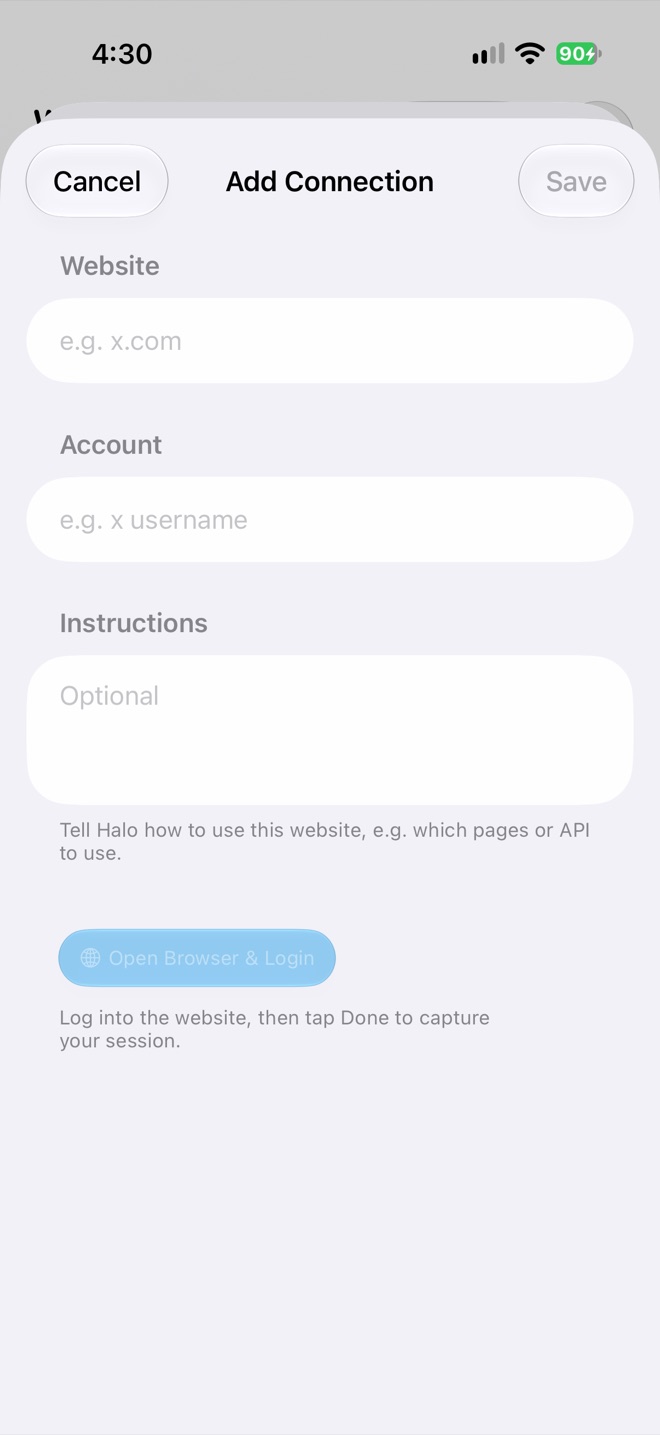
Settings › Connected Websites › +
Use it
Ask in chat or in a task: “Fetch my 10 latest X bookmarks and save them to a file.” Halo opens the site already signed in. When it needs to type a password or card number, it uses your Secure Vault without the AI seeing the value, and it can wait up to two minutes for a one-time code.
When you’re signed out
Websites sign you out after a while. Each connection shows when you signed in. If Halo can’t get in, tap Re-authenticate and sign in again, or Refresh to check the session.
Privacy
Your session is saved in your Halo workspace in iCloud Drive, so your other devices can use it too. It’s like staying signed in on a browser: anyone with access to your workspace could use it. Remove connections you no longer need.